



MPV is a really cool open source/libre media player that works with just about any kind of file. It’s based on the famous FFmpeg library used to decode pretty much all known video and audio formats. One of my favorite features of MPV is the ability for it to play any arbitrary YouTube video if you compile with yt-dlp support enabled.
Normally mpv is invoked via the command line. For example, you can just paste in a YouTube link like this:
$ mpv https://www.youtube.com/watch?v=dQw4w9WgXcQ
If you have MPV with yt-dlp support installed on your computer, a window should immediately pop up with the video linked.
You can even have MPV do audio-only if you pass in the --video=no flag into mpv. This ended up being really useful around the house, because I have three places where I have a Raspberry Pi hooked up to some normal PC speakers (or soundbars). At Xaibatsu, we have a common area with the same setup—it’s an old laptop connected to some nice speakers and a subwoofer.
Up until recently, the only way to control this was by literally logging into the computer via SSH and invoking mpv from the command line. This was fine for one-off cases, but was pretty unmanageable for cases like a shared space where multiple people should be able to enqueue music that they want to listen to.
I thought a really cool weekend project might be to try and add a better interface on top of MPV, preferably one that can be accessed remotely by anybody. I started writing a backend that managed a playqueue of URLs, and exposed the ability to append to the playqueue or manage playback via an API. This started to get pretty hairy, especially dealing with what happens when MPV exits and the next item in the playqueue is supposed to start playing.
As it turns out, I didn’t need to write my own playqueue code because MPV already has a built-in playqueue! Even better, MPV also has an excellent, well-documented IPC interface. So most of the work here was actually in the frontend, adding a nice web interface on top of the existing MPV IPC interface.
This was the first time I’ve seriously tried React, having come from primarily native development. I also used the Cursor code editor to really accelerate some of the boilerplate, and to help me with some areas of React that I was previously unfamiliar with. I really think using Cursor for this project turned this from a week-long project into one that I was able to finish in just a weekend.
The following weekend, I even added the ability to search YouTube right in the frontend UI, which uses an Invidious instance to be able to do the search without needing API permission/keys from YouTube.
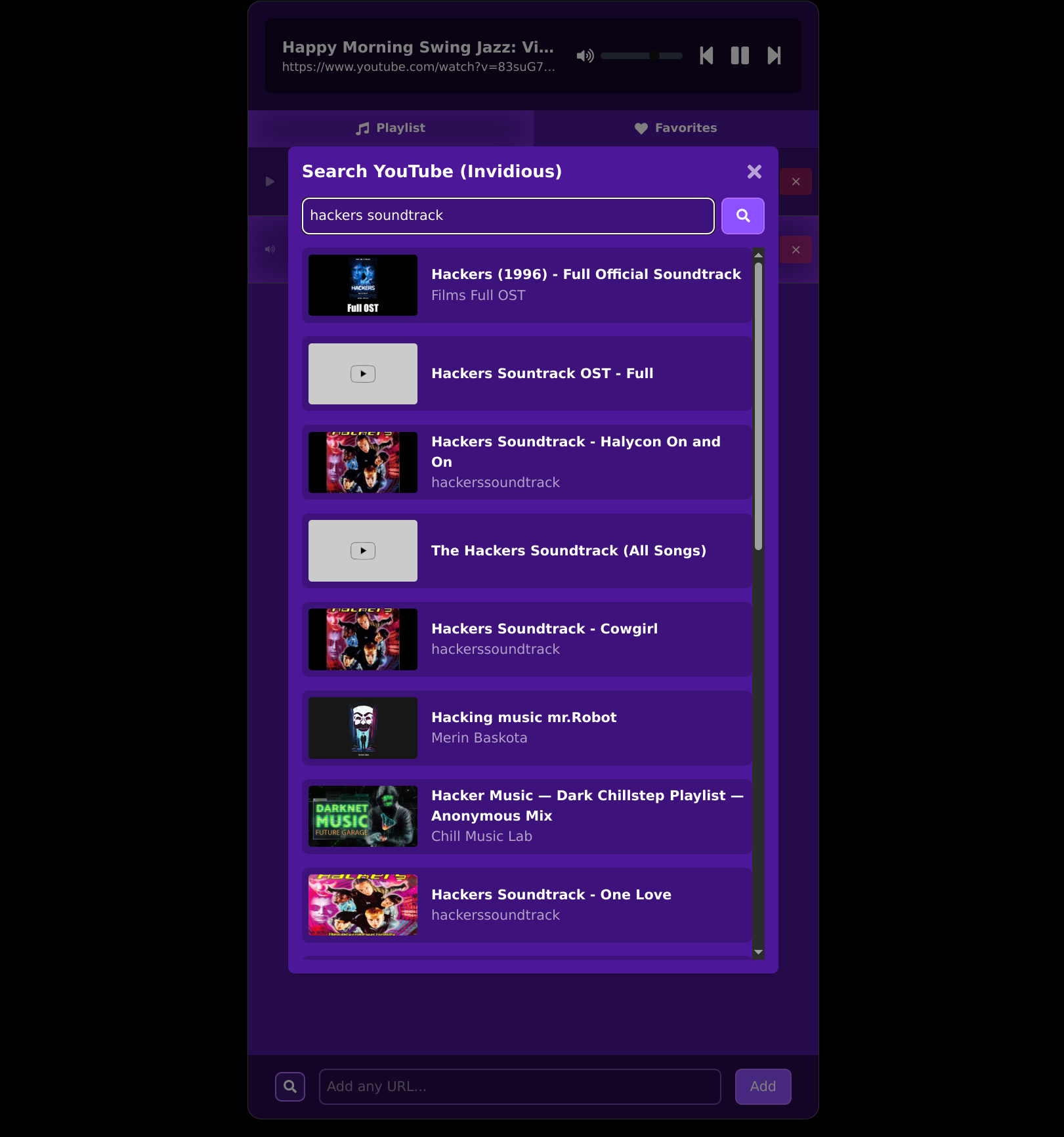
You can click on any of the results and it will immediately get added to the playqueue! The downside of this is that you also need to operate or link this to an Invidious instance, but it works just fine without YouTube search integration anyway.
Using the Cursor AI Code Editor
This project was also the first time I’ve really extensively used an LLM as an assistant for most of the coding tasks. It was a pretty fascinating experience, and I think I now really grok the promise and limitations of these types of tools.
The first very positive experience I had was simply going from “zero to one.” I suffer pretty greatly from “blank page syndrome,” staring at an empty code editor (or Markdown editor) can be pretty daunting. It takes a while for me to finally get the ball rolling and get into the flow. Using either Cursor or Claude Code has been absolutely incredible for overcoming this hurdle. Claude Code is particularly good at this, because you can simply make a new, totally empty directory in your terminal and just invoke claude to get started. I found that if you’re very specific with your prompt, it can get you through at least most of the boilerplate and setup of the build system. For example:
╭──────────────────────────────────────────────────────────────────────────────────────────╮
│ > I would like to create a new project here that implements both a frontend and backend  │
│   for the `mpv` media player. I want both the frontend and the backend to be written     │
│   in TypeScript, and I want a Makefile for easier invocation of the npm build scripts.   │
│   I also want a Dockerfile that can build a production image of the app that I can       │
│   deploy using Docker.                                                                   │
╰──────────────────────────────────────────────────────────────────────────────────────────╯
The more you write in this prompt, especially regarding programming standards, project setup, etc., the better the results are going to be.
One downside I noticed about using an LLM assistant here is that it can often go down the wrong path during development, and it just doesn’t seem to have the desire or insight to correct it once it has started down that path. For example, above I alluded to the fact that I started by managing my own playqueue (and thus, the lifecycle of a constantly starting/stopping mpv child process) before I knew about the IPC interface. Claude did not know about the IPC interface either (at first), and happily obliged in the execution of my original vision of the manual invocation/management of mpv. Even after informing Claude about the existence of the IPC interface, and instructing it to restructure/redesign the backend around this, it was often very reluctant to make major modifications to the code, even though it was warranted in this case.
Video
The original intention behind this project was just to have a system just for audio that works kind of like a shared jukebox. Of course, mpv can do video as well, so why not also make that work! This ended up being really fun for my TV, which is also connected to a Linux box that can run QueueCube/mpv. I’m also looking at installing a projector for the common area at Xaibatsu, which I intend to make controllable via the QueueCube interface.
In theory, since mpv works with just about any kind of link, you should be able to share your computer’s display to a QueueCube setup using OBS, which is able to stream over an RTSP stream. This already works really great with some of the security cameras I have set up at my house.
If you are setting up QueueCube for video, you just need to pass in ENABLE_VIDEO=1 as an environment variable during execution of the backend. This is a snap to set up with Docker.
Native Apps and other ways to run
My brother created a great native Gtk client for Linux desktops also. Now that I am legally allowed to share iOS apps, I’m also working on a native iOS client as well (work in progress).
Source Code
As always, the source code is available on my SourceHut, licensed as GPL.